Getting to Understand Your Plugin
As simple as the Plugin is to use, there are a number of ways it can adapt to it’s surroundings. Use this page to help you know what to expect from your Plugin
Table of contents
Landing Screen
Existing Users
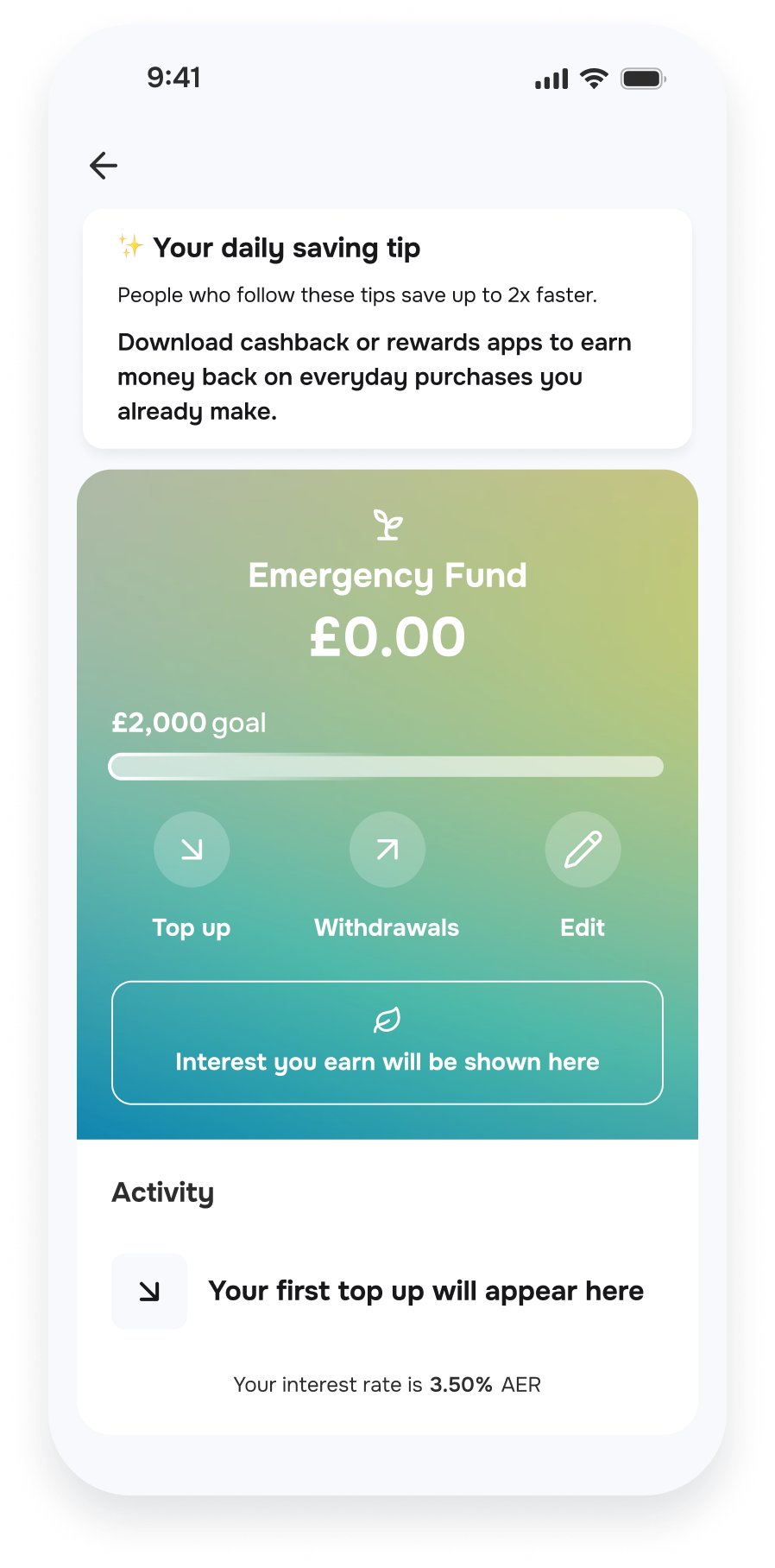
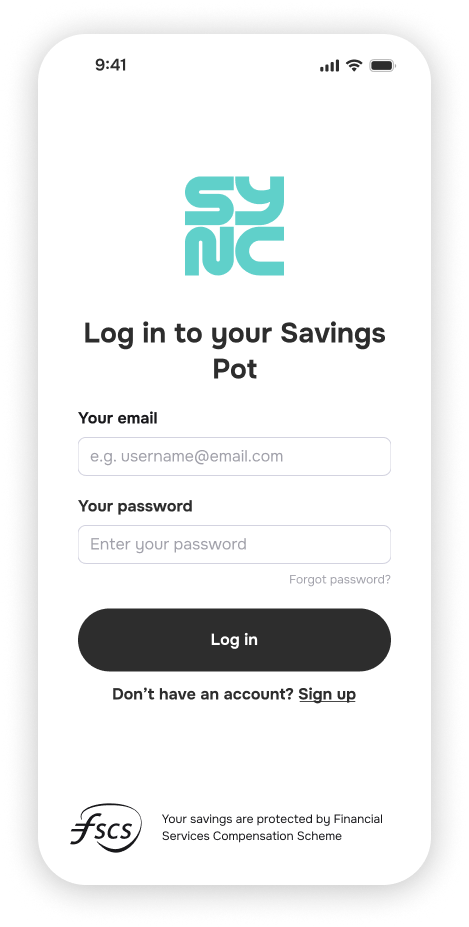
There are two possible landing spots for returning users, depending on whether a user that has been pre-authenticated (i.e. attached payload is generated and signed by you and is specific to that user) or needs to provide an email and password:
 |  |
|---|---|
| Pre-authenticated users are directed towards their account page | Password users are directed to a branded login-screen |
New Users
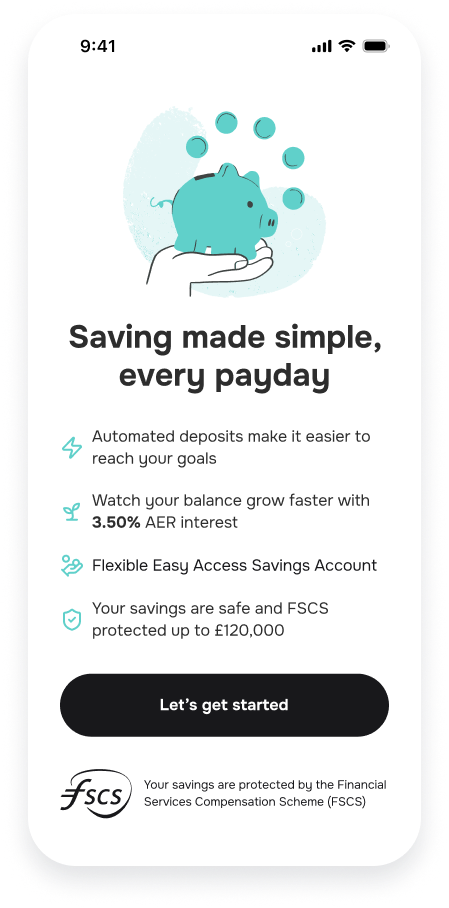
New users are directed to our Onboarding flow. Which begins with our basic facts and information screen.
Onboarding
All new users are required to provide a minimum amount of information needed to open their savings account, authorise withdrawals and be informed of updates. A large amount of this information will be prefilled from the token payload (see here) to greatly simplify the process. The following pages are added to give new users the opportunity to double check data provided and provide missing data.
💡 Data provided by you in the token payload is not overridable by the user but is able to be previewed. Data updated in your records (that are reflected in token payloads on subsequent logins) will be updated automatically in ours.
Below, we will go through key steps in the Onboarding flow and some of the behaviours implemented to help guide news users through the journey.
Login Details
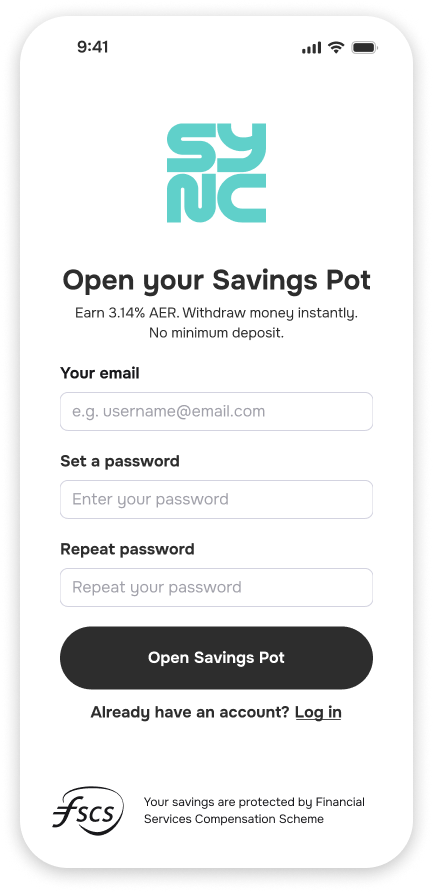
Password authenticated users must provide a valid email address and password (repeated). This page will be omitted from the flow for plugin distributors that pre-authenticate their users.
Eligibility
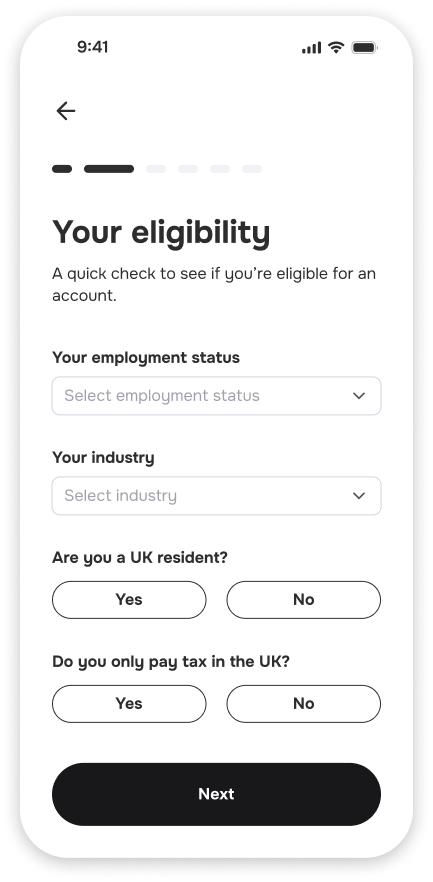
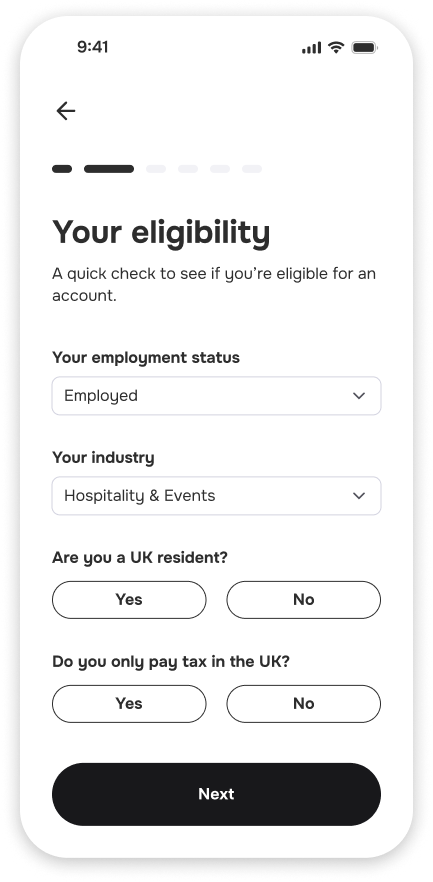
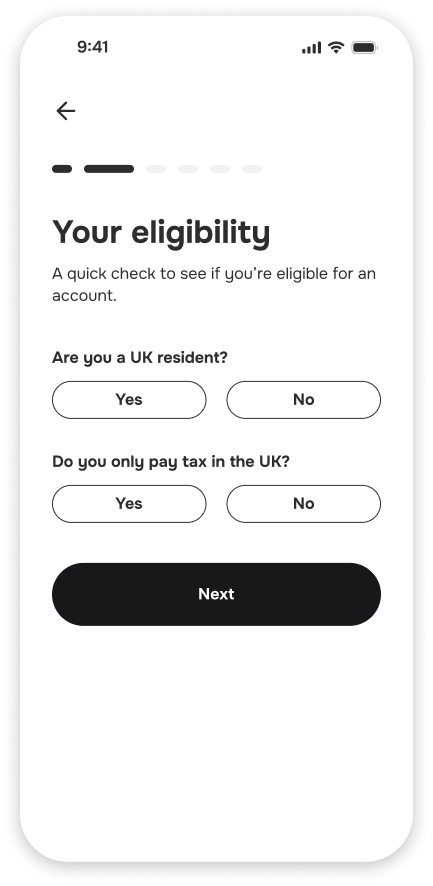
This page prompts users to provide some details about their employment and make declarations about their tax and residency statues and, therefore, their eligibility to access savings through Sync Savings.
There are a few different ways this page can present depending on distributor-level configuration and data within the token payload.
 |  |  |
|---|---|---|
employment.status and employment.industry token payload fields are empty and configuration provides on default or fallback values | Token payload fields are empty and configuration values are marked as PREFILLED. Status and Industry fields are editable by user | Configuration values are marked as FIXED or values provided by token payload. If both are provided, configuration value is used as backing value. |
Personal and Contact Details
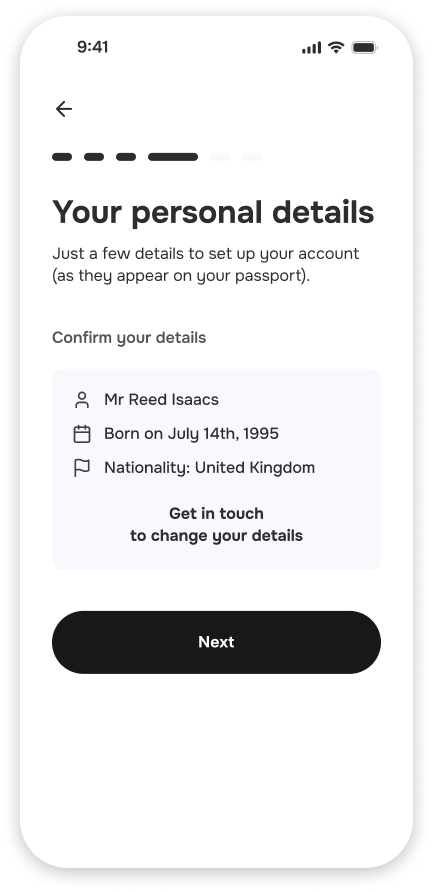
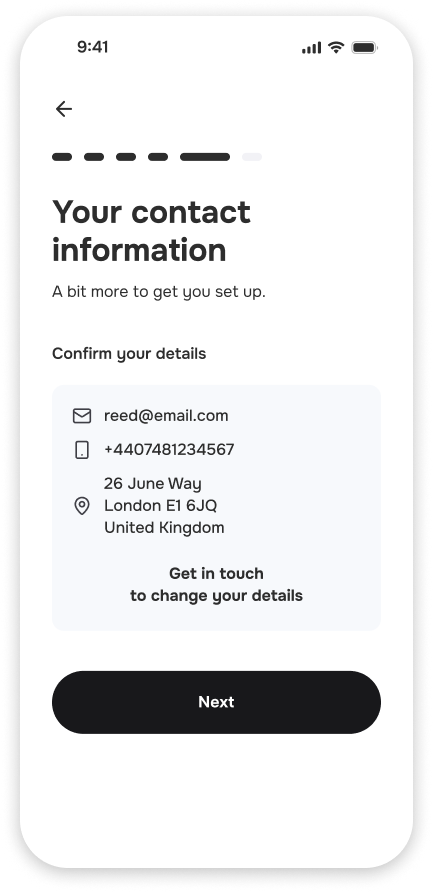
These pages gather further details about the new user. They are prefilled using the token payload and allow input of missing data. If all necessary data is provided, form views are skipped and a preview/check view is shown in its place.
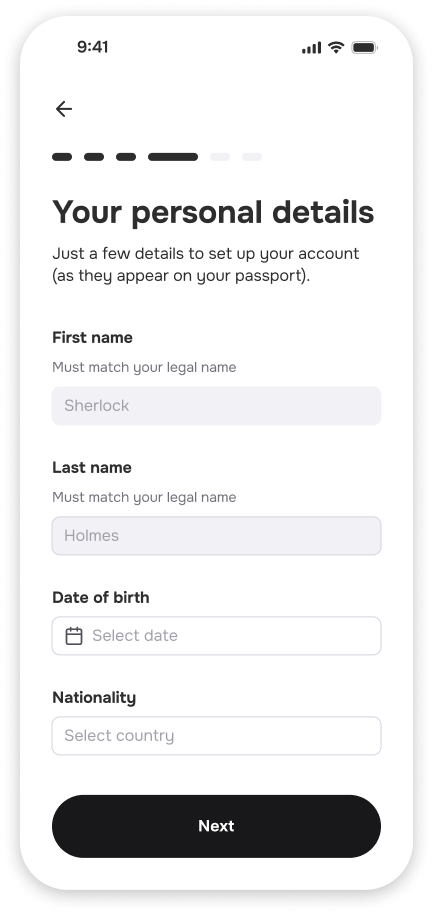 | 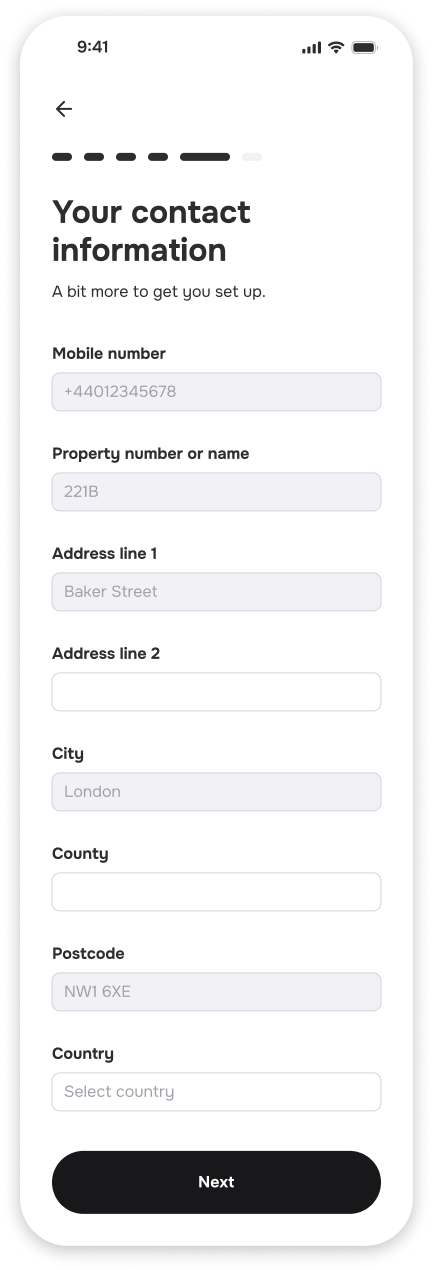 |
Personal or contact detail forms are show with fields disabled when data provided by token payload.
 |  |
Bank Details
Users must declare a source bank account. Where they are available, we encourage all distribution partners to provide sourceAccountDetails in the token payload.
💡 Distributors should provide Bank Details when available. Discuss with your integration manager if this is not possible.
❗ Bank account detail validation is still performed on account creation if user input is not used. Ensure token payload provides valid details!
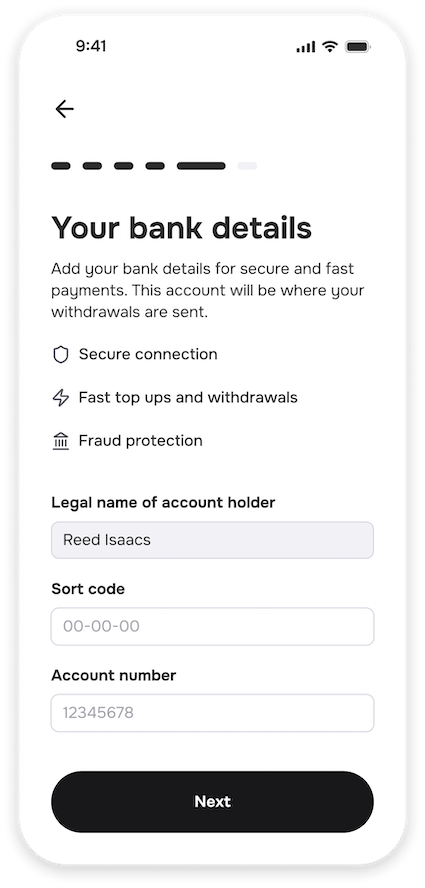
When page is enabled, the form can still be prefilled with data from the distributor payload. As with the personal and contact details forms, prefilled values are not editable (as shown by the greyed-out name field below).
Documents
There are a number of critical documents (from both Sync and partner bank) that users must acknowledge and accept before an account can be created.
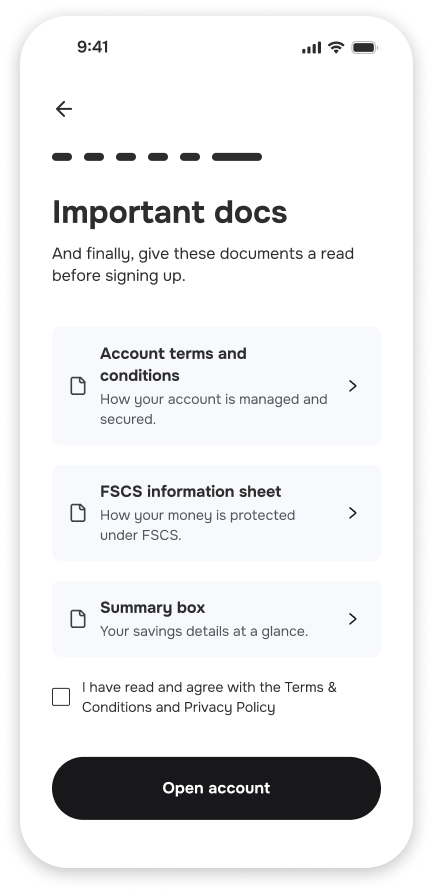 | 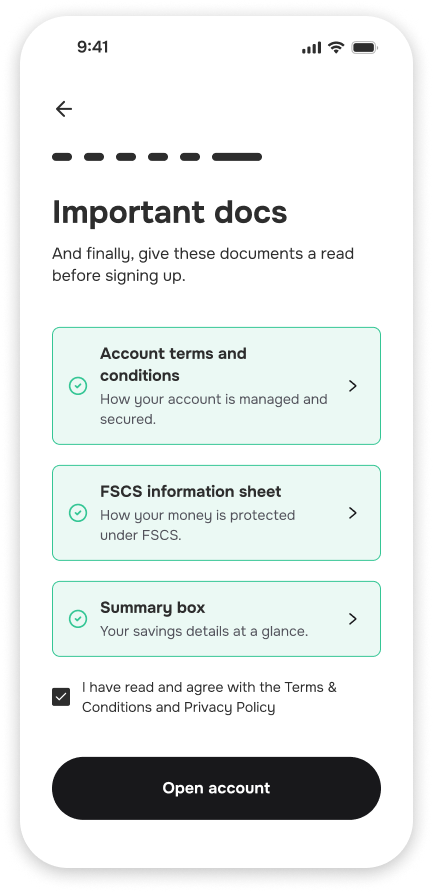 |
On agreeing to Terms & Conditions and submitting, a Saver record is created in our system.
Identity Verification
Some of our partners will require their users to undergo a form of identity verification. These users will undergo quick automated checks (eKYC) based on data provided. These users will begin in a pending state whilst they await results from the automatic checks on the data provided.
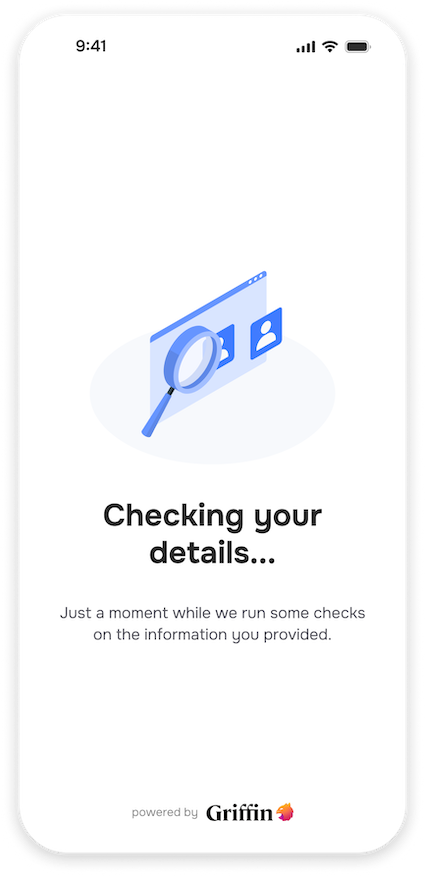
If all checks pass, users will be moved on to the Sign up Complete step, where their bank account will be created.
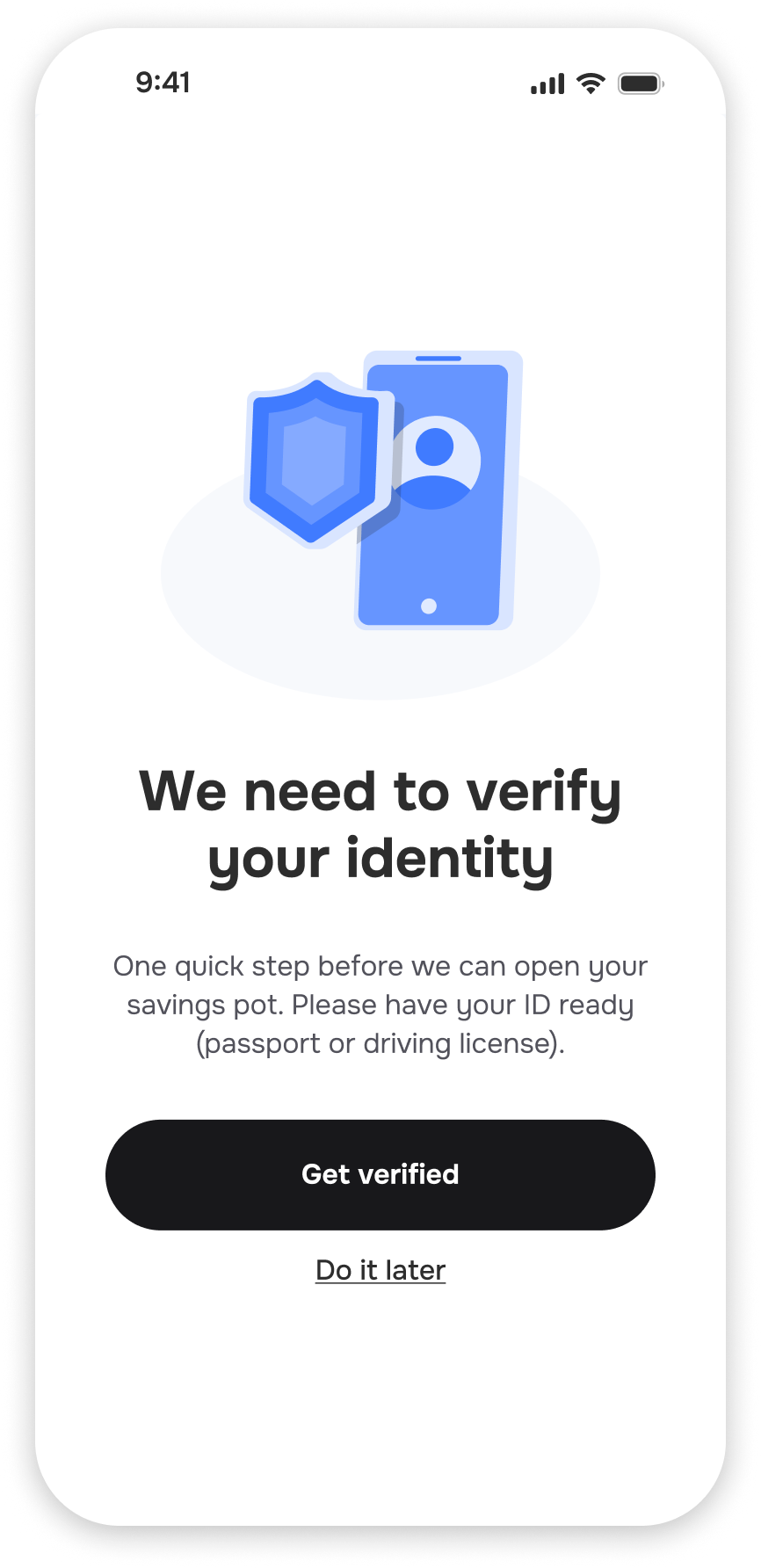
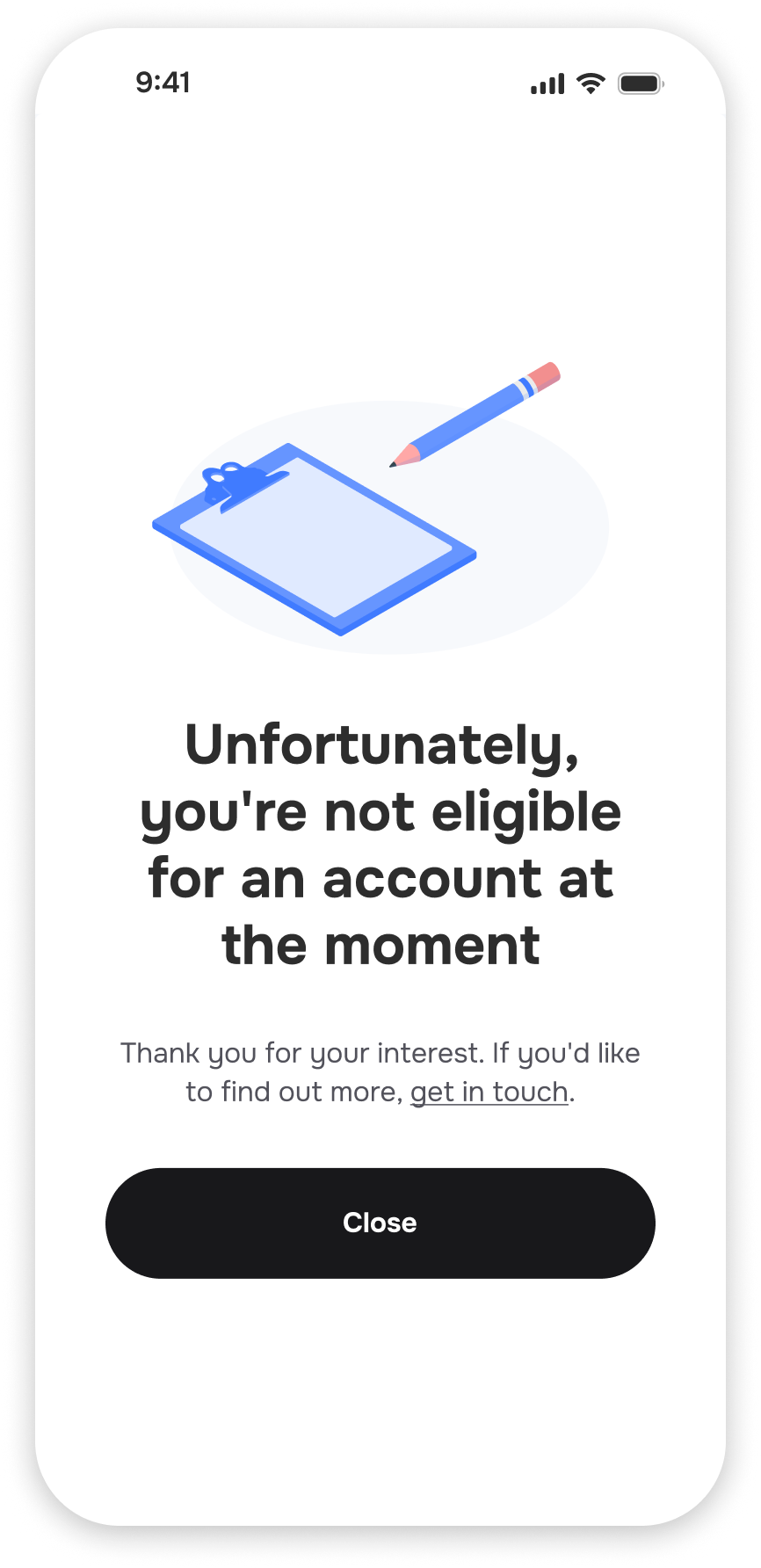
There are two other non-Success outcomes of the automated checks.
 |  |
|---|---|
The escalated status is the result of missing or inconsistent data. As such, users will be provided with a link to double check provided data, fill anything missing and uploaded any necessary supporting documentation. | A user may be found to have certain history, associations or other sanctions that may forbid them from opening a UK bank account. These users will be put into the rejected state. |
❗ Users in a rejected state will be prevented from progressing any further. They may reach out for more information but Sync is under no obligation to share details of Identity Check results to rejected users.
Complete
Upon completing Saver creation (and any Identity Verification), a Bank Account is created and Goal and Deposit data are committed.